> For the complete documentation index, see [llms.txt](https://docs.antbuddy.com/llms.txt). Markdown versions of documentation pages are available by appending `.md` to page URLs; this page is available as [Markdown](https://docs.antbuddy.com/tai-lieu-antbuddy-huong-dan-su-dung-antbuddy-docs-user-guide/huong-dan-su-dung-quan-tri-khach-hang-antcrm-antcrm-customer-management/chat-da-kenh-conversation/facebook-fanpage/9.-gui-hinh-anh-sending-images.md).
# 9. Gửi hình ảnh (Sending images)
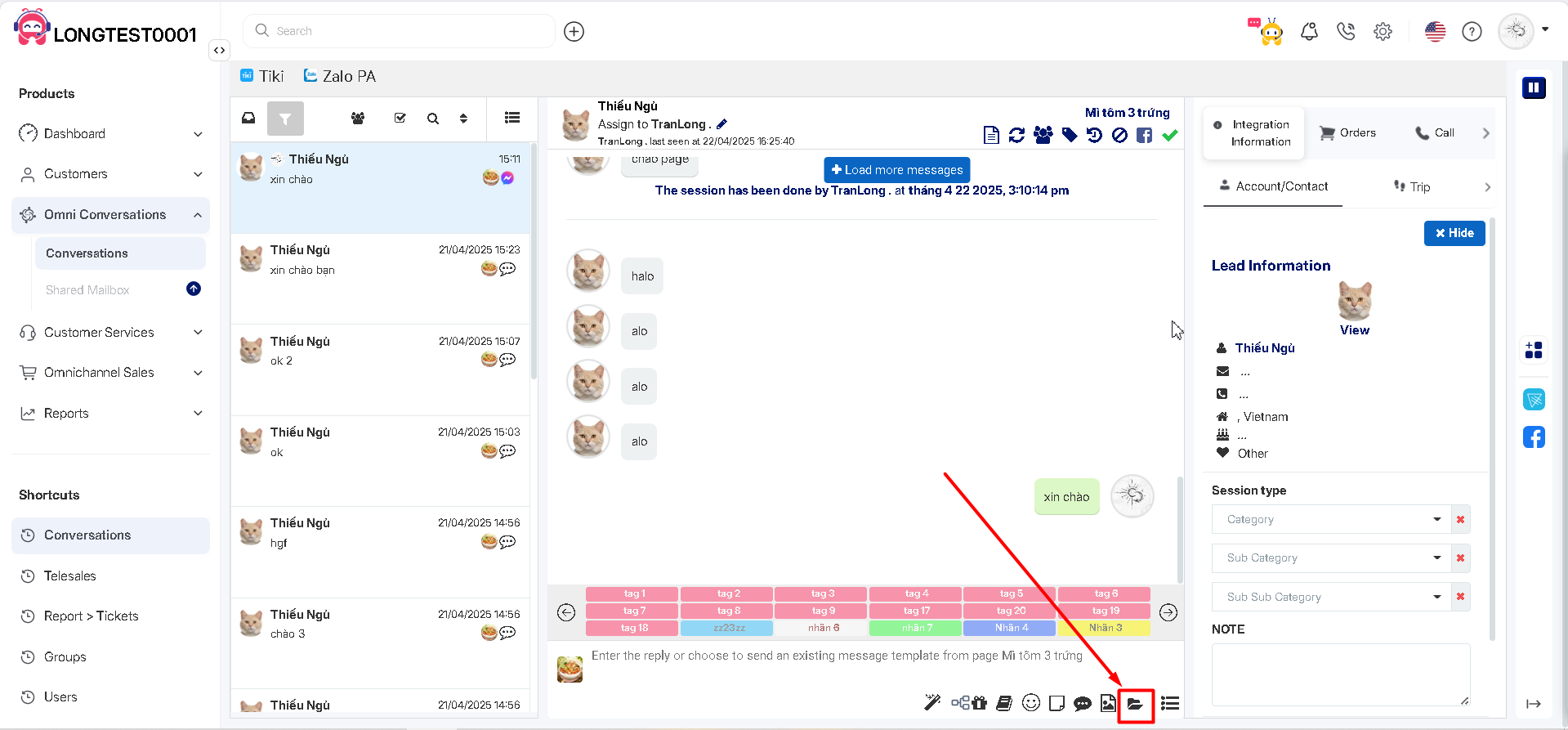
**Bước 1**. Tại thanh chat, click icon \
*(**Step 1**: In the chat bar, click the icon.* *)*
**Bước 2**. Chọn hình ảnh cần gửi \
*(**Step 2**: Choose the picture to send)*
**Bước 3**. Click Open\
*(**Step 3**: Click open)*
Hình ảnh sẽ được gửi đi \
*(The image will be sent.)*
Đây là ảnh nhận được từ khách hàng\
*(This is the image received from the customer.)*
Để xem toàn bộ ảnh, click vào ảnh\
*(To view the full image, click on the image.)*