> For the complete documentation index, see [llms.txt](https://docs.antbuddy.com/llms.txt). Markdown versions of documentation pages are available by appending `.md` to page URLs; this page is available as [Markdown](https://docs.antbuddy.com/tai-lieu-antbuddy-huong-dan-su-dung-antbuddy-docs-user-guide/huong-dan-su-dung-quan-tri-khach-hang-antcrm-antcrm-customer-management/chat-da-kenh-conversation/zalo-oa/17.-huong-dan-gan-nhan-2-chieu-giua-zalooa-va-antcrm-two-way-label-sync-user-guide.md).
# 17. Hướng dẫn gắn nhãn 2 chiều giữa ZaloOA và AntCRM (Two-way label sync user guide)
Mục đích
Purpose
Đồng bộ nhãn (label) giữa AntCRM (Omni) và Zalo OA.
To synchronize labels between AntCRM (Omni) and Zalo OA.\
Khi gắn nhãn ở AntCRM → nhãn sẽ tự động đồng bộ sang Zalo OA.
When a label is applied in AntCRM, it will be automatically synced to Zalo OA.
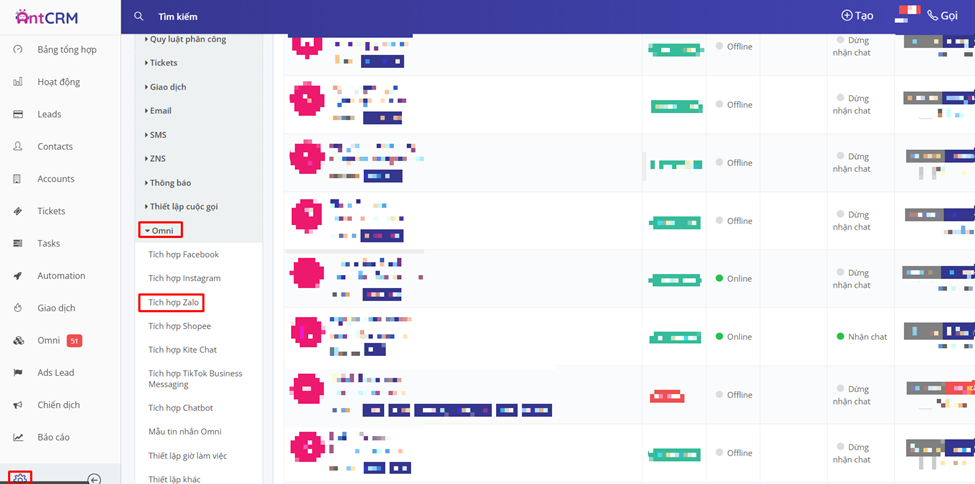
### BƯỚC 1: Truy cập cài đặt tích hợp Zalo OA
1\. Vào **Setting** trong AntCRM
2\. Chọn **Omni**
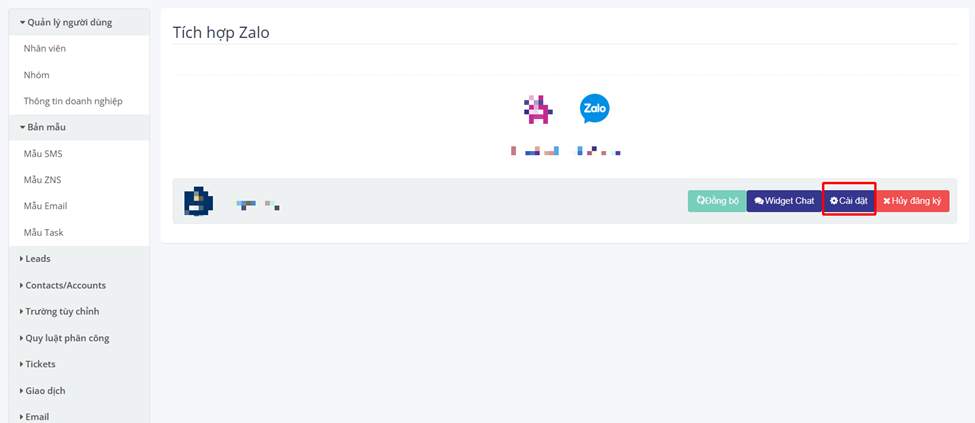
3\. Chọn **Tích hợp Zalo**
**4.** Click **Cài đặt**
### STEP 1: Access Zalo OA Integration Settings
1\. Go to **Settings** in AntCRM
2\. Select **Omni**
3\. Choose **Zalo Integration**
4\. Click **Settings**
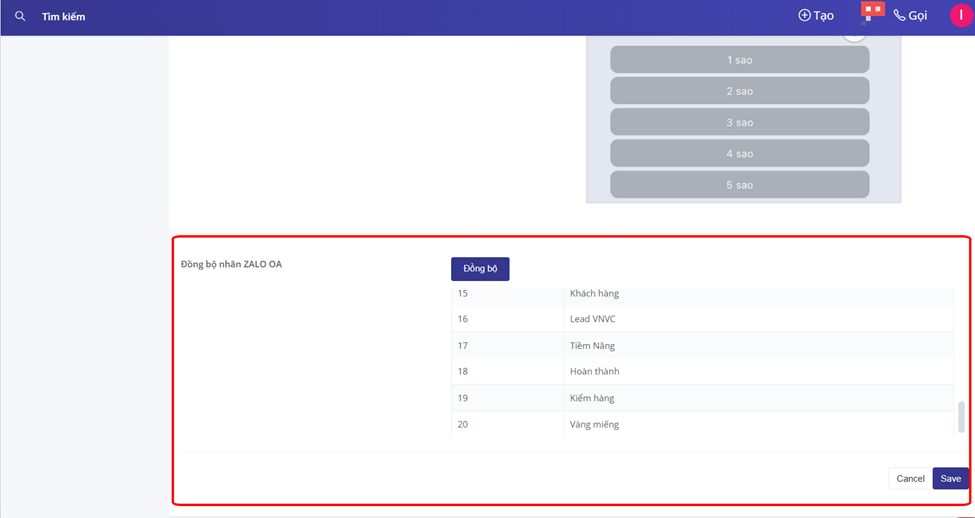
### BƯỚC 2: Bật đồng bộ nhãn
1\. Trong trang **Cài đặt Zalo**, kéo xuống **cuối trang**
2\. Chọn **Đồng bộ**
**3.** Bật tính năng **đồng bộ nhãn**
### STEP 2: Enable Label Synchronization
1\. On the **Zalo Settings** page, scroll down to the **bottom of the page**
2\. Click **Sync**
3\. Enable **Label Synchronization**
### ⚠️ LƯU Ý QUAN TRỌNG KHI ĐỒNG BỘ NHÃN
· **Nên bấm nút “Đồng bộ” trước khi sử dụng nhãn**
· Nếu **chưa bấm nút Đồng bộ**:
o Khi tạo **nhãn mới bên Zalo Business**
o AntCRM **sẽ KHÔNG nhận và không đồng bộ được nhãn đó**
👉 Bước này giúp hệ thống cho phép nhãn giữa AntCRM và Zalo OA được liên kết với nhau.
#### ⚠️ IMPORTANT NOTE ABOUT LABEL SYNC
· You **must click the “Sync” button before using labels**
· If the **Sync button is not enabled**:
o When a new label is created in **Zalo Business**
o **AntCRM will NOT receive or synchronize that label**
👉 This step allows labels to be linked and synchronized between **AntCRM and Zalo OA**.
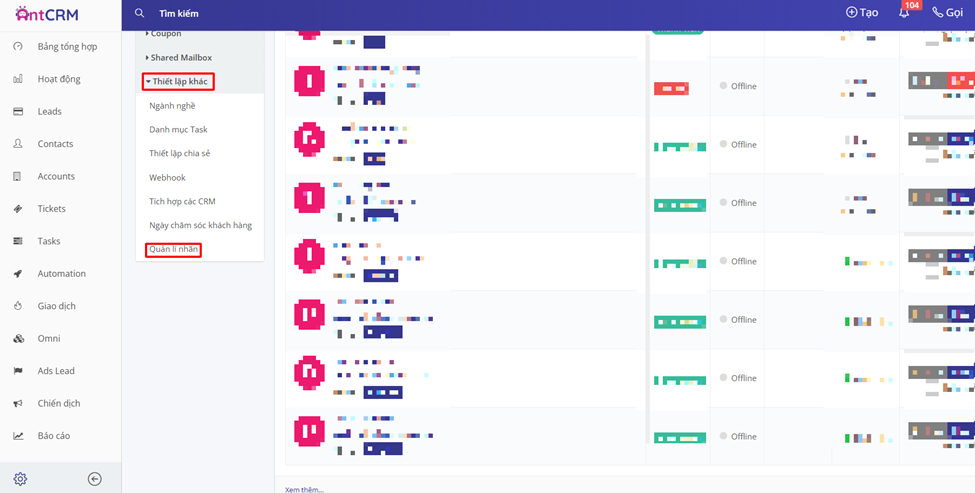
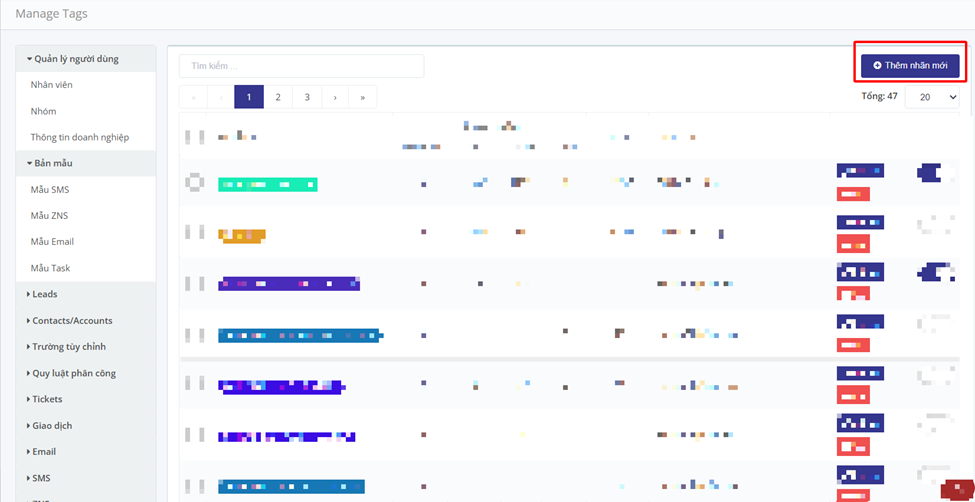
### BƯỚC 3: Tạo nhãn trong AntCRM
1\. Trong **Setting**, vào **Thiết lập khác**
2\. Chọn **Quản lý nhãn**
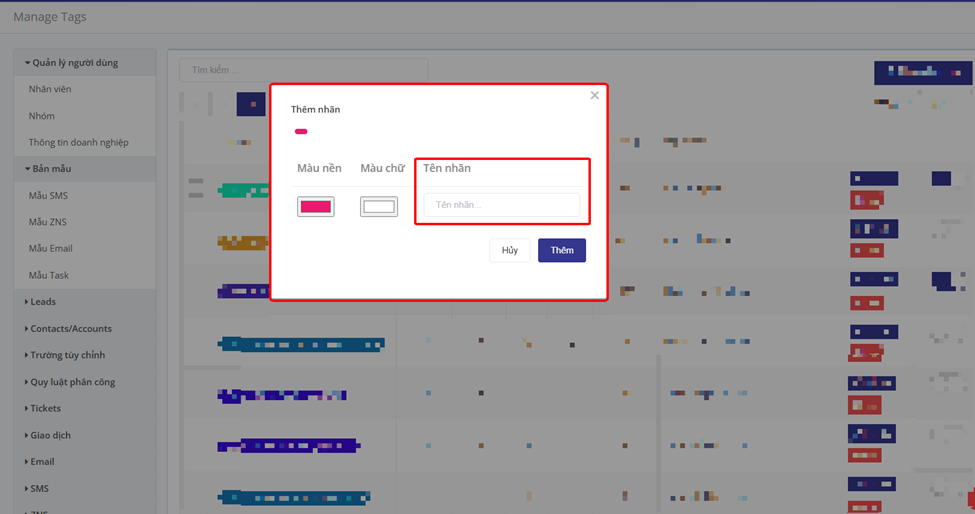
3\. Click **Thêm nhãn mới**
⚠️ **Lưu ý quan trọng**
· Tên nhãn **phải đặt giống hệt** tên nhãn dùng để đồng bộ với Zalo OA
· Không khác ký tự, không thừa khoảng trắng
### STEP 3: Create Labels in AntCRM
1\. In **Settings**, go to **Other Settings**
2\. Select **Label Management**
3\. Click **Add New Label**
#### ⚠️ Important Note
· The **label name must be exactly the same** as the label used in Zalo OA
· No different characters and **no extra spaces**
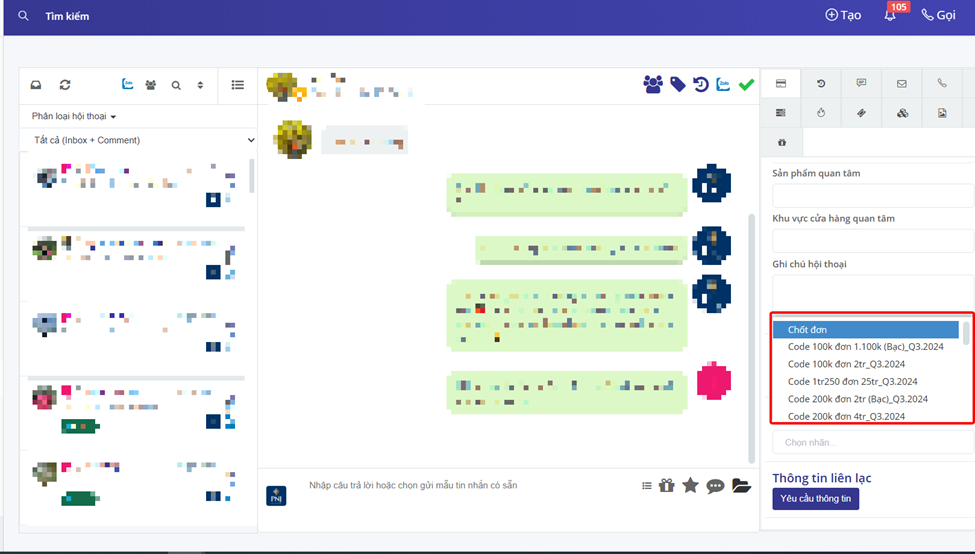
### BƯỚC 4: Gắn nhãn trong Omni
1\. Vào lại **Omni**
2\. Chọn Chat đa kênh **/ khách hàng** cần gắn nhãn
3\. Chọn **nhãn đã tạo** (nhãn đã được đồng bộ)
### STEP 4: Apply Labels in Omni
1\. Go back to **Omni**
2\. Select the **conversation / customer** you want to label
3\. Choose the **created label** (the synchronized label)
### KẾT QUẢ
· Sau khi **gắn nhãn trong Omni (AntCRM)**
· Nhãn đó sẽ **tự động đồng bộ sang Zalo OA (Zalo Business)**
· Không cần thao tác thủ công bên Zalo
### RESULT
· After applying a label in **Omni (AntCRM)**
· The label will be **automatically synchronized to Zalo OA (Zalo Business)**
· **No manual action is required on the Zalo side**